Download

Exodus Instructions
Setup takes about 2 minutes.
Windows, macOS & Linux
1
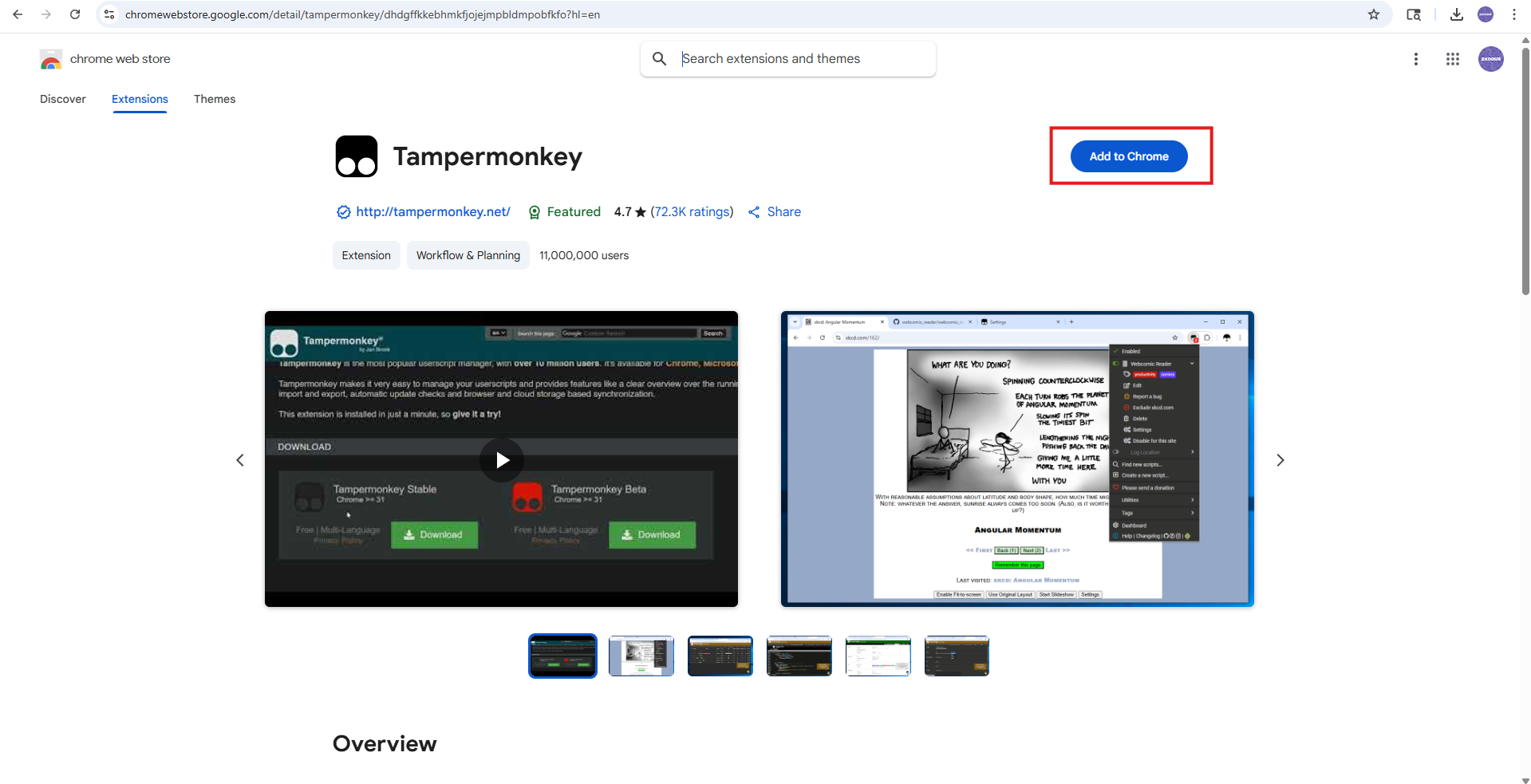
Install Tampermonkey: Begin by adding the
Tampermonkey extension
to your browser (Chrome recommended). This is required for running userscripts like Exodus.
2
Enable Developer Mode & Userscripts: Make sure both Developer Mode and Userscripts are enabled in your browser’s
extensions settings, as Tampermonkey may not function correctly without it.
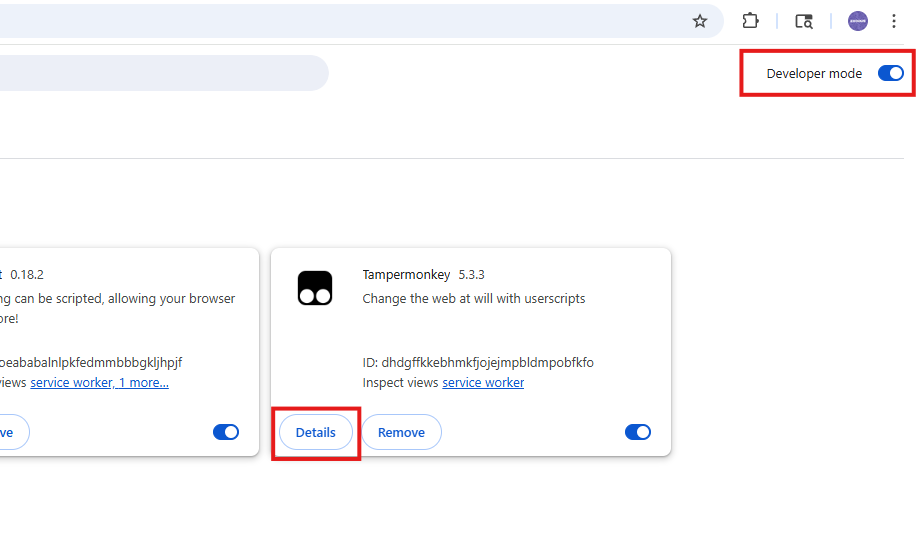
To enable developer mode on Chrome:
- Open Chrome.
- Go to
chrome://extensions/. - Click the “Developer mode” toggle at top right corner.
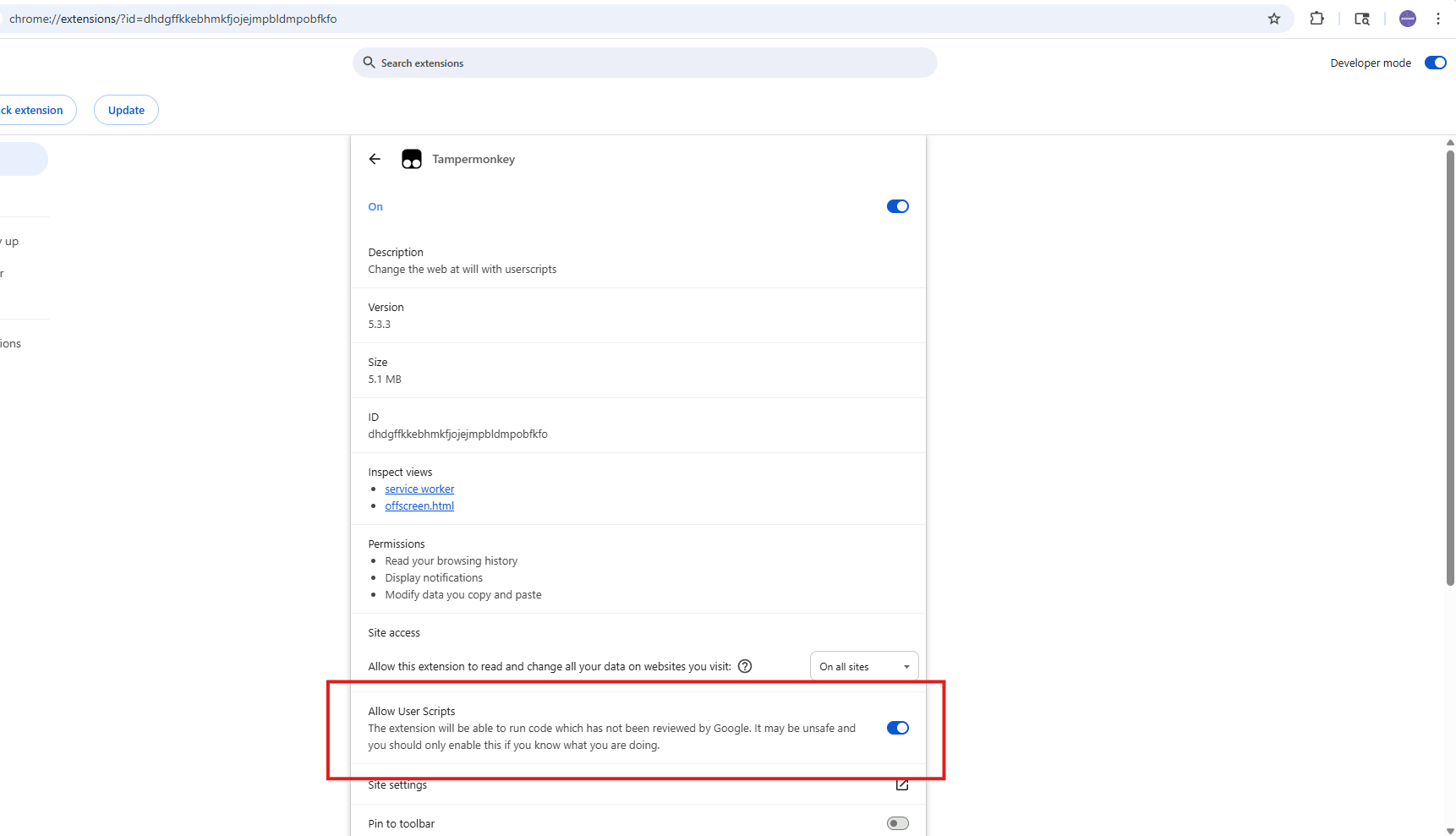
To ensure Userscripts run properly:
- In
chrome://extensions/, find Tampermonkey. - Click the Details button.
- Make sure the "Allow User Scripts" option is enabled.
3
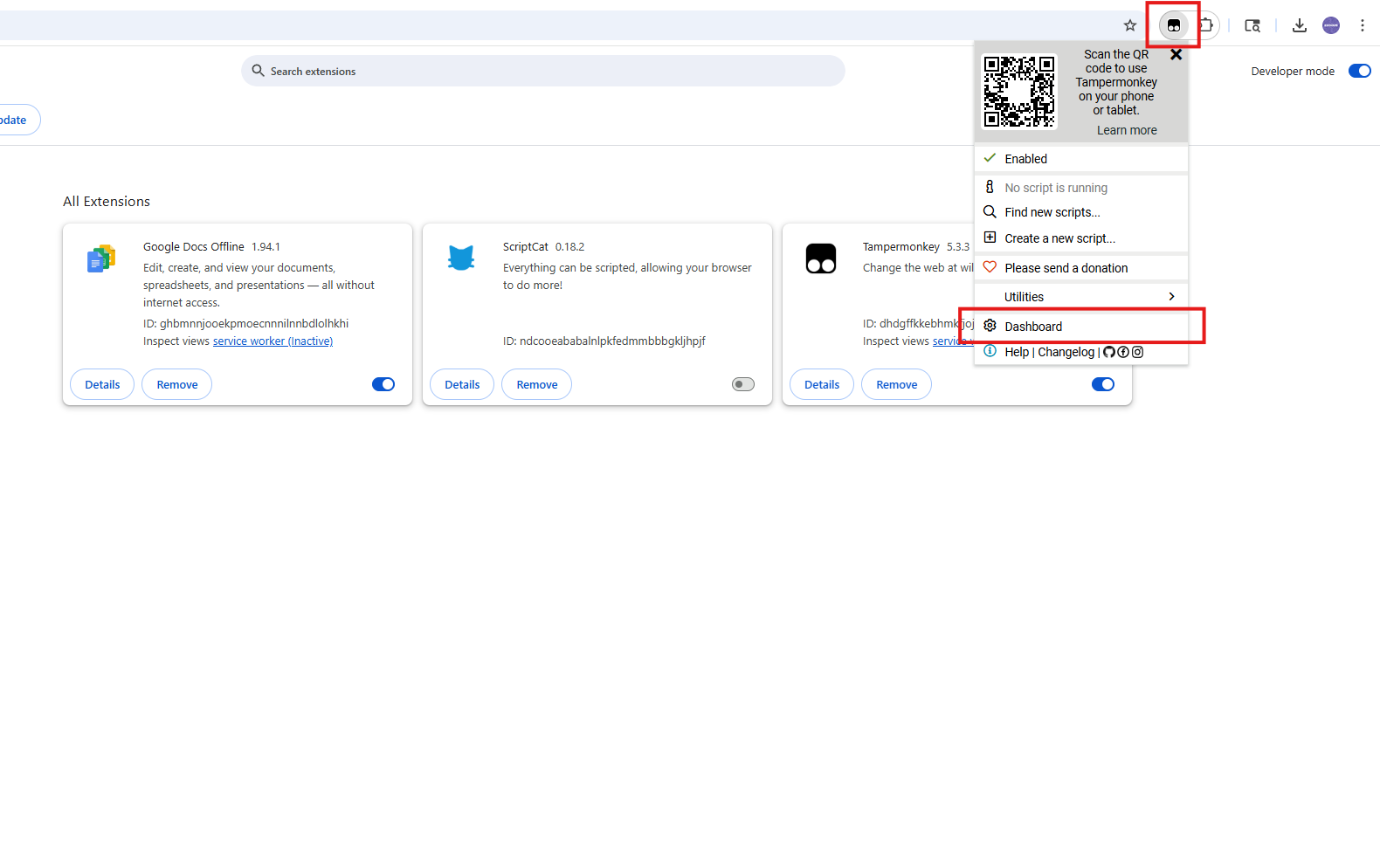
Access the Tampermonkey Dashboard: Once installed, click the Tampermonkey icon
in the top-right corner of your browser, and select Dashboard from the dropdown.
4
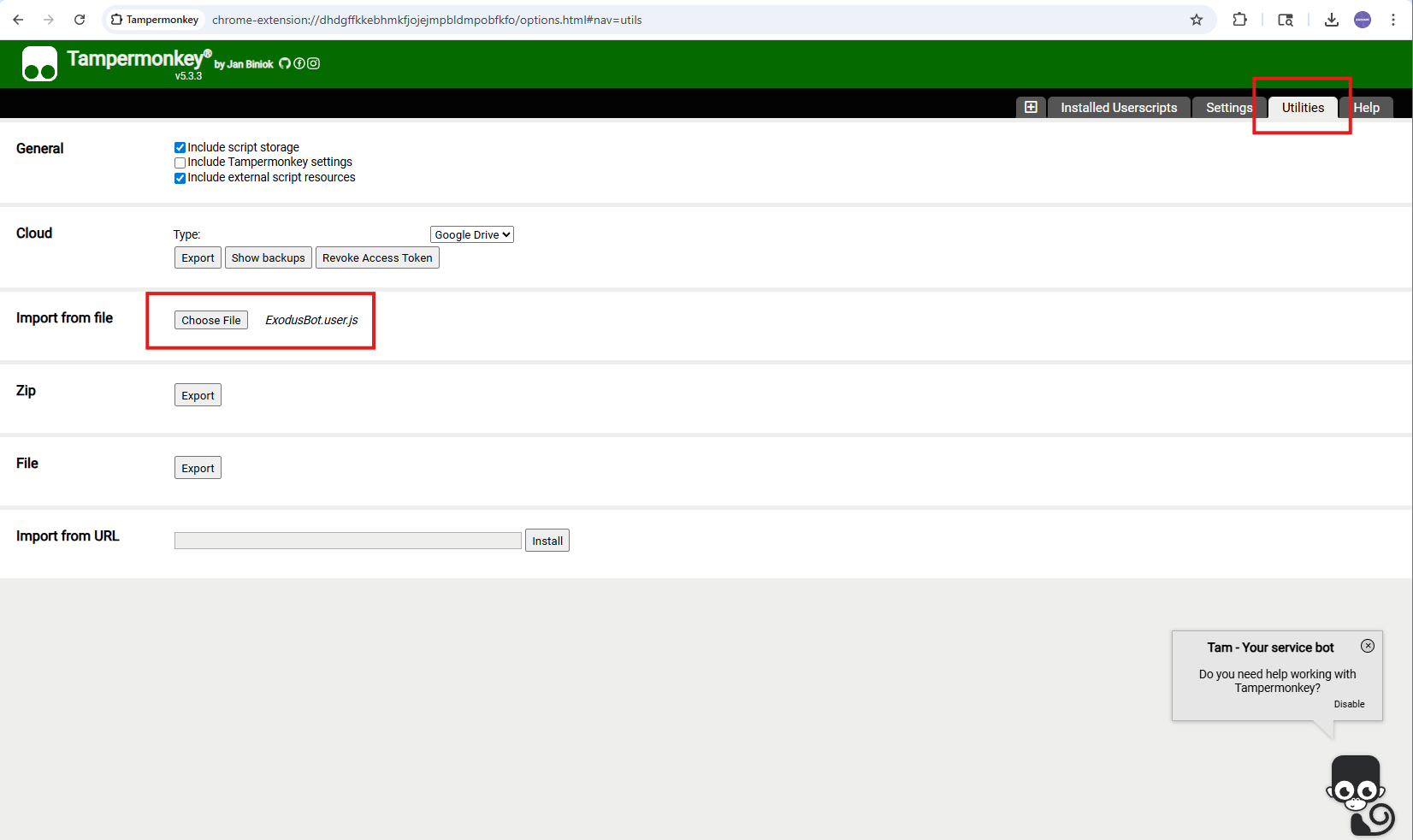
Add the Exodus Script: In the Tampermonkey Dashboard, go to the Utilities tab.
Under Import from File, select the
Or use Import from URL with this link:
ExodusBot.user.js file you downloaded.
Or use Import from URL with this link:
https://api.exodusbot.net/ExodusBot.user.js.
You can also use the download button at the top of this page and click Install.
5
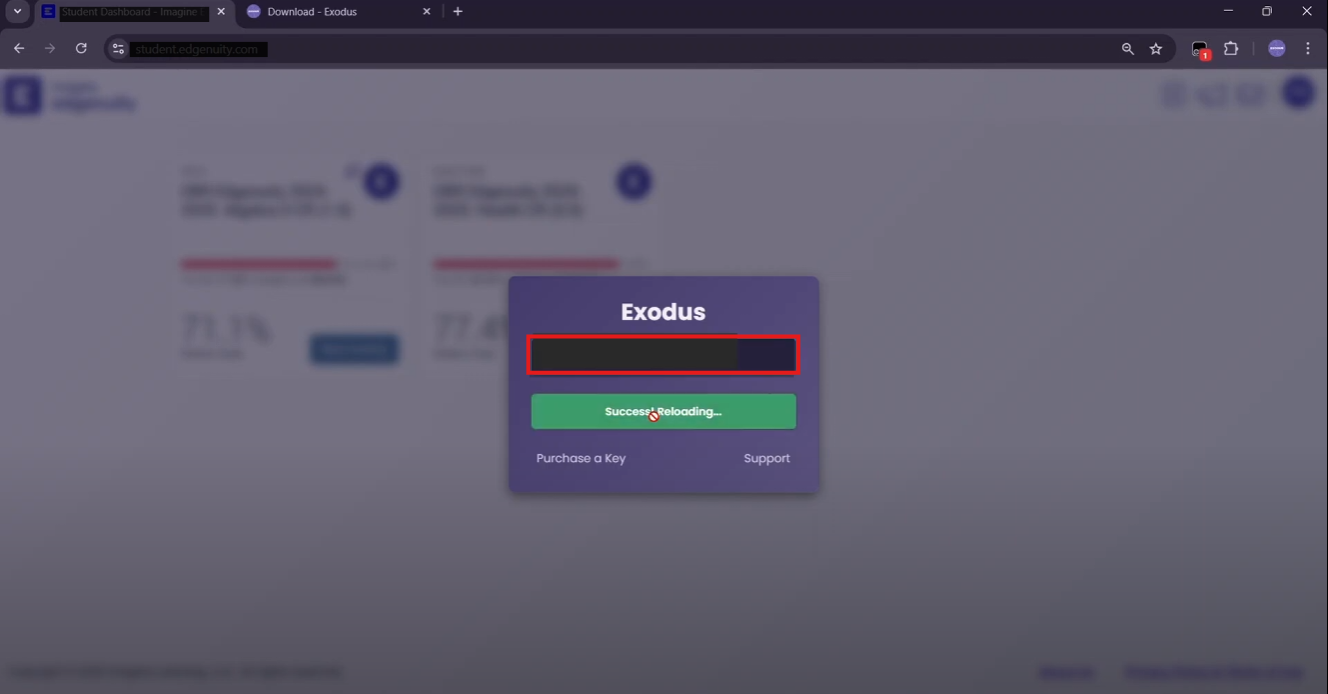
Activate Exodus: After installing, visit
Edgenuity, log in, and enter your
Exodus key. If the Key Menu doesn’t appear, try restarting your browser or toggling Tampermonkey off and back on, and ensure Developer Mode and Allow Userscripts is enabled.
iPhone & iPad
1
Install Focus - Userscripts: Get the free Focus - Userscripts app and open it.
2
Open the menu: Tap the hamburger menu (☰) in the bottom-right corner.
3
Open the Script manager: Tap Script (
</>).
4
Open the options: Tap the three dots (⋯) in the top-right corner.
5
Import from link: Tap Import from link, then paste this URL and save:
https://api.exodusbot.net/ExodusBot.user.js6
Activate Exodus: Open Edgenuity, log in, and enter your Exodus key.
Android
1
Install Microsoft Edge: Get the Microsoft Edge browser from the Google Play Store and open it.
2
Add Tampermonkey: In Edge, go to tampermonkey.net, tap Download, then choose Tampermonkey (Beta) to install it.
3
Enable Developer Mode: Tap the three dots (⋯) → Extensions, turn on Tampermonkey, then Manage Extensions → ⚙ → turn on Developer Mode.
4
Import the script: Open this URL and tap Install when Tampermonkey prompts:
https://api.exodusbot.net/ExodusBot.user.js5
Activate Exodus: Open Edgenuity, log in, and enter your Exodus key.
Need pictures? See the full Android guide.
Exodus runs most reliably on desktop, use one if you can.
Bought the Proctorio Spoofer? It’s a separate Windows app. Set it up here.
1
Install Tampermonkey
2
Enable Developer Mode & Userscripts at
chrome://extensions/
3
Open Tampermonkey Dashboard
4
Import the Script
5
Activate Exodus
Already bought Exodus? Open your order for your key and setup steps.
Open my latest order
💬 What people say about Exodus